getting started
Getting Started with DOJECT
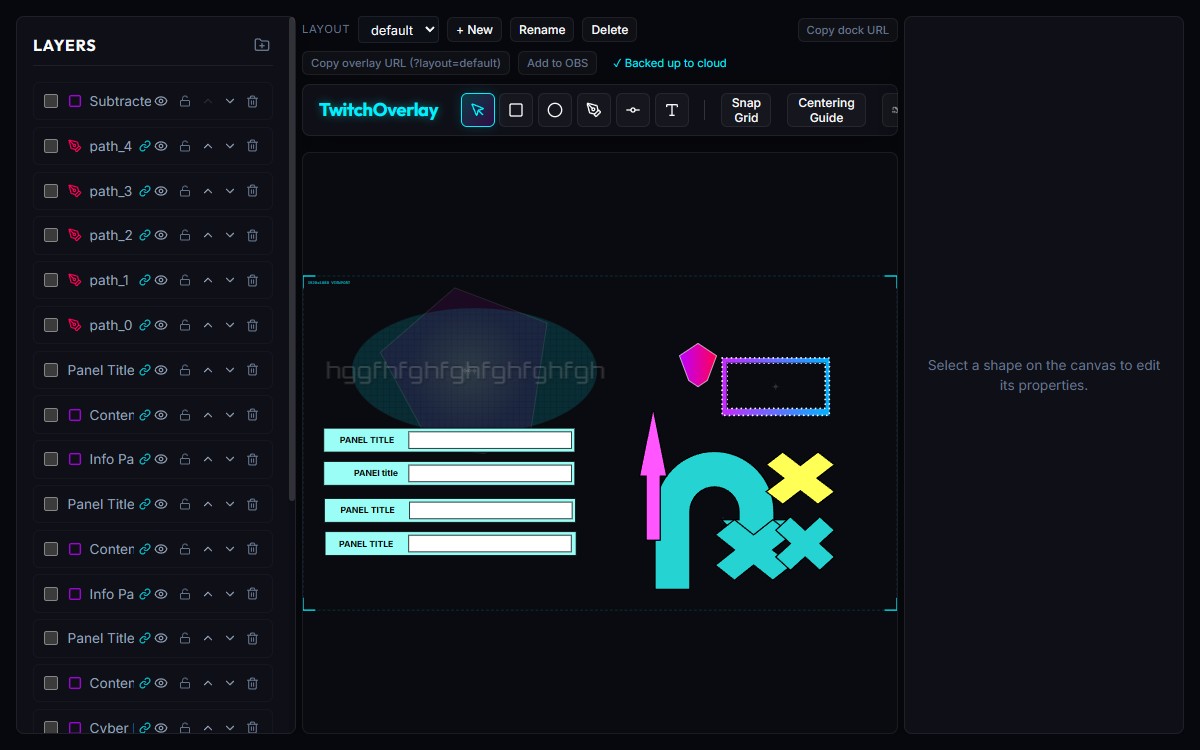
DOJECT is a free graphics editor that lives inside OBS Studio. Design your stream overlays in a side panel and watch them appear live. No exporting, no extra apps. This guide gets you from zero to your first overlay in about five minutes.
// before you start
OBS Studio
Free and open source. Download it from obsproject.com if you don't have it yet.
~5 minutes
That's the whole setup. Designing after that takes as long as you want.
A Twitch account
Optional. Only needed if you want live follow / sub / raid alerts on your overlay.
// step by step
Add DOJECT to OBS
DOJECT lives inside OBS Studio as a dock, a panel on the side of your OBS window.
- Open the editor and download the setup file (setup.bat on Windows, setup.sh on Mac/Linux).
- Close OBS, run the file, then reopen OBS.
- The DOJECT editor now appears as a dock. That is where you design.
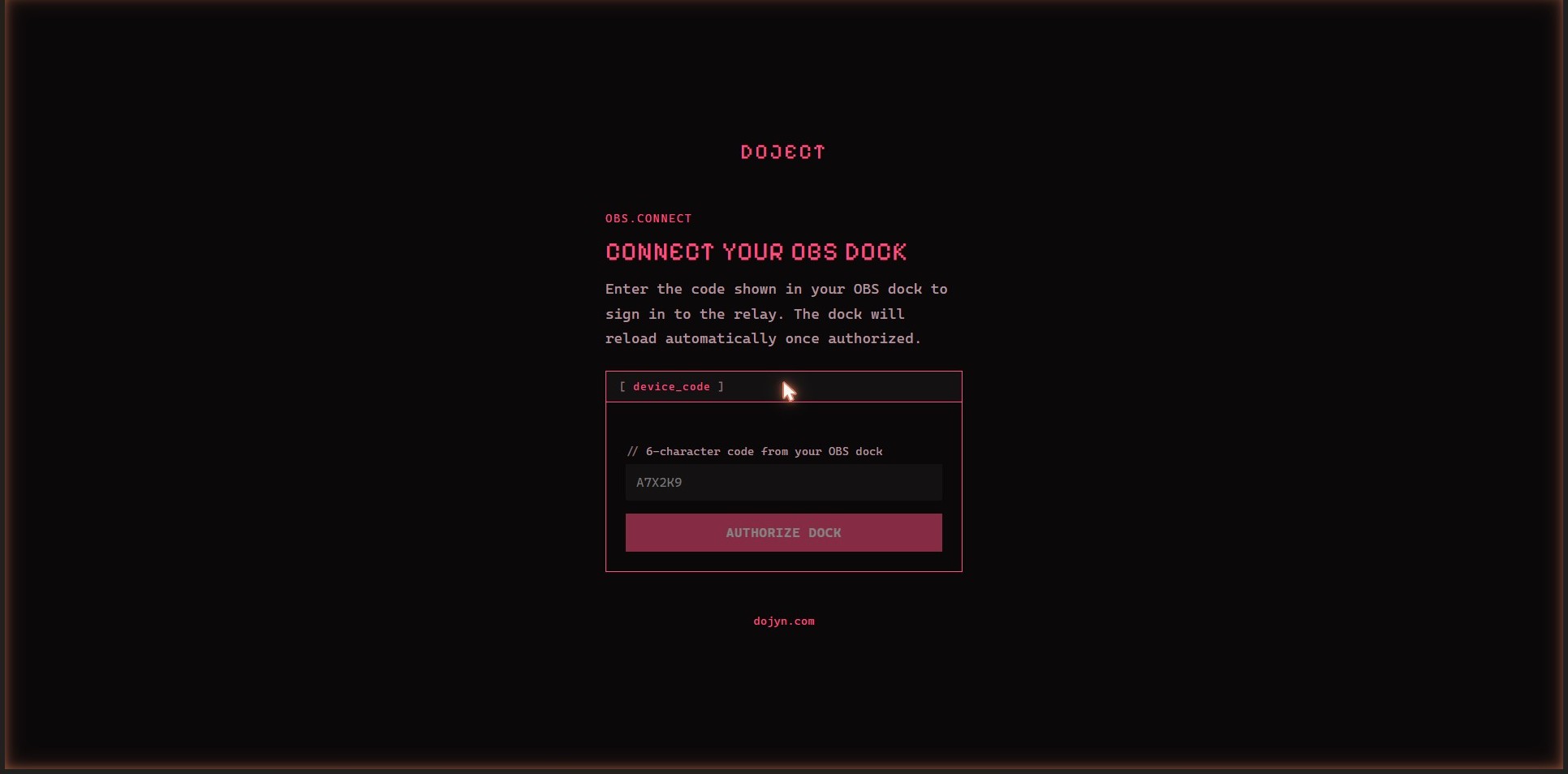
Log in (optional, recommended)
Logging in saves your designs to the cloud and lets you edit from any device. You can skip this and stay local-only.
- The dock shows a 6-character code.
- In your normal web browser, go to dojyn.com/obs-connect and type the code.
- The dock reloads, logged in. Your work is now backed up.
Add the overlay to your scene
The dock is where you design. The overlay is what your viewers see. Each scene needs its own overlay.
- In OBS, add a Browser Source to your scene.
- Paste the overlay URL (the editor gives you one per scene).
- Set it to 1920 × 1080 with a transparent background.
Design your first graphic
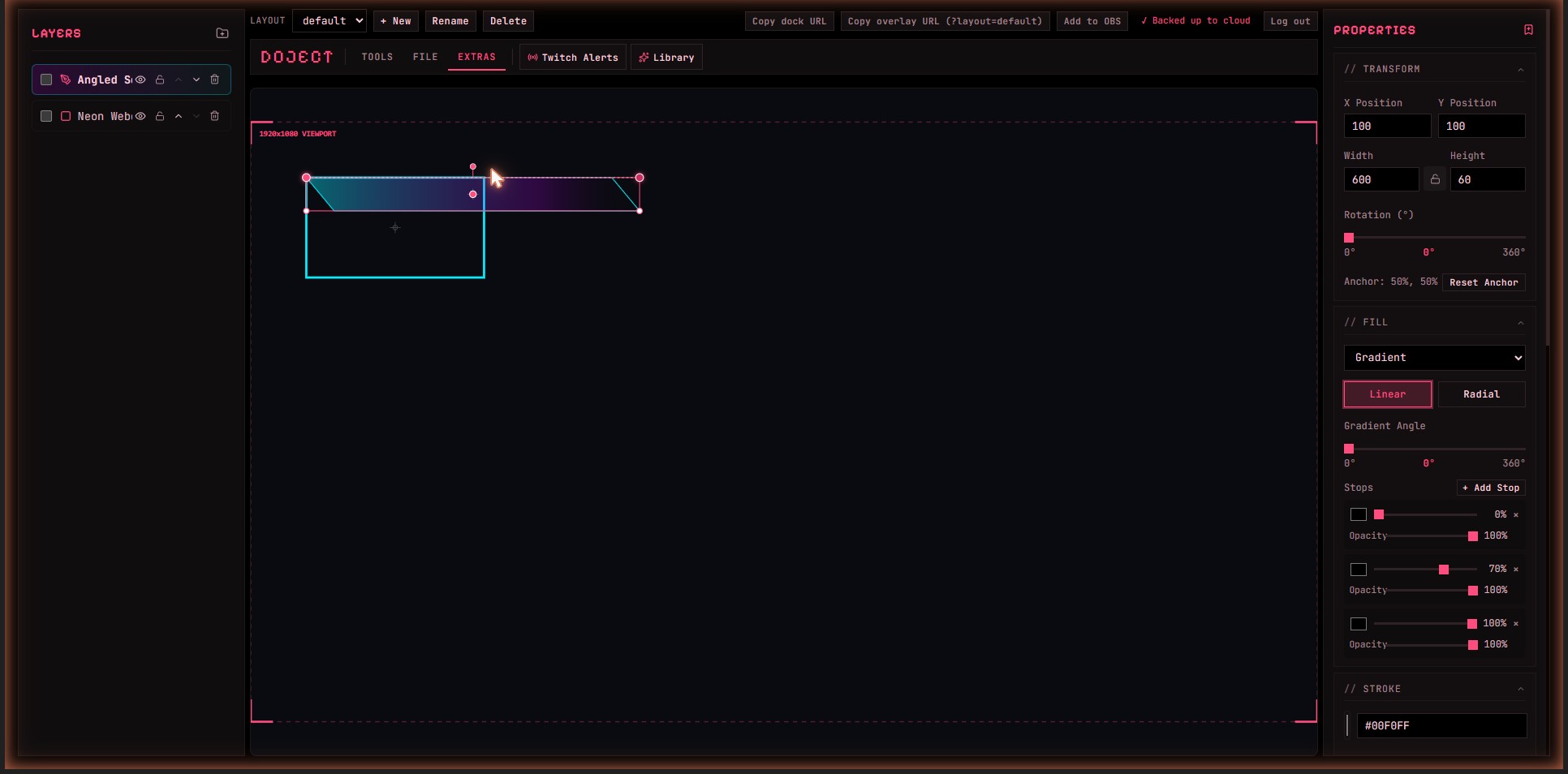
Now the fun part. Draw straight onto the canvas in the dock.
- Press R for a rectangle, C for a circle, T for text.
- Drag to draw. Change colour, size, and position in the right-hand panel.
- Everything you draw appears on your stream instantly. No saving or exporting.
Add a Twitch alert (optional)
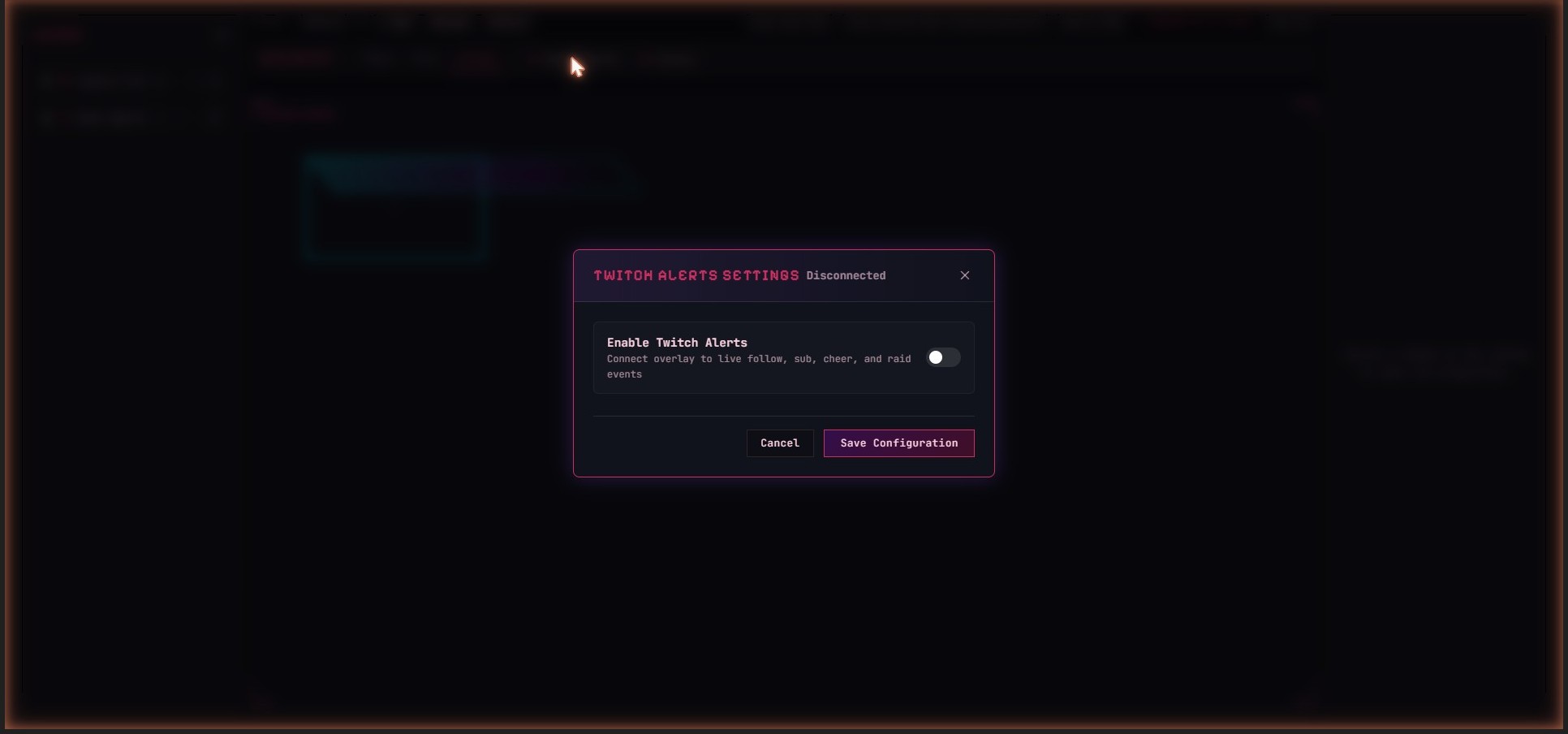
Make a shape or text react when someone follows, subs, cheers, or raids.
- Connect your Twitch account in the editor settings.
- Select a layer, then link it to an event like "new follower".
- Write a message such as "{user} just followed!" and pick an animation.
Go live
That is it. Keep the dock open while you stream.
- Edit in the dock. The overlay updates live, mid-stream.
- Switch OBS scenes and the right overlay follows automatically.
- Logged in? Tweak your overlay from your phone or laptop too.
Stuck on any step? You never lose work. Everything you draw is either saved locally or, once you log in, backed up to the cloud. Close OBS and come back any time.
// tips for beginners
Start small
One webcam frame and a text label is a real overlay. Add more once it feels natural.
Use presets
The preset library has ready-made frames, headers, and badges. Drop one in and edit it.
Learn a few keys
R, C, T to draw. Ctrl+Z to undo. Press ? in the editor for the full shortcut list.
One overlay per scene
Give each OBS scene its own overlay source so every scene can look different.
// faq
Do I need to know how to design?
No. If you can drag a box and pick a colour, you can build an overlay. Start from a preset if a blank canvas feels intimidating.
Is it free?
Yes. DOJECT is free to use. Logging in (also free) adds cloud backup, cross-device editing, and Twitch alerts.
Do I have to install anything heavy?
No. The setup file just tells OBS where to find the editor. There is no separate app running in the background.
Why log in if local mode works?
Local designs live only in that one browser. If you clear OBS data or move computers, they are gone. Logging in keeps them safe and syncs them everywhere.
It says "Add to OBS" but I want to try it first.
Add ?standalone=1 to the editor URL to use it in any normal browser without OBS. Good for practising before you wire it into your stream.
Does it work with Streamlabs?
Yes. The editor and overlay are standard Browser Sources, so any software that supports them works: Streamlabs, XSplit, and others.
Ready to build your first overlay?